> For the complete documentation index, see [llms.txt](https://docs.fusion.vectra.ai/llms.txt). Markdown versions of documentation pages are available by appending `.md` to page URLs; this page is available as [Markdown](https://docs.fusion.vectra.ai/automate-responses/configuring-response-integrations/panther.md).
# Panther
Prerequisites Before configuring in the Fusion portal, the http source webhook and shared secret authentication method must be setup in Panther. For more details, follow the HTTP log source setup inst
## Prerequisites
Before configuring in the Fusion portal, the http source webhook and shared secret authentication method must be setup in Panther. For more details, follow the [HTTP log source setup](https://docs.panther.com/data-onboarding/data-transports/http#how-to-set-up-an-http-log-source-in-panther) instructions from Panther.
## Netography Portal Steps
In **Settings > Response Integrations**, click **Add Integration**. Select **Panther**.

## Configuration details
The following fields are specific to the Panther integration.
| Field | Required | Description | Example |
| ----------------------- | -------- | -------------------------------------------------------------------------------------------------------------------------------------------------------------------------------------------------- | --------------------------------------------- |
| `URL` | yes | The Panther http source webhook URL configured from the HTTP log source setup | `https://name.panther.runpanther.net/example` |
| `Skip SSL Verification` | no | If checked, the server certificate will not be validated against the available certificate authorities. Also won’t require the URL host name to match the common name presented by the certificate | |
| `Headers` | yes | Comma separated list of `header: value` pairs. This will be the shared secret value configured from the HTTP log source setup. | `header: shared-secret` |
{% hint style="info" %}
**📘After your configuration is submitted, the Panther integration will be treated as a standard webhook integration in the Fusion portal.**
{% endhint %}
## Authentication details
The following fields may be used for the integration to authenticate using HTTP Basic Auth.
| Field | Required | Description |
| ---------- | -------- | ------------------------ |
| `Username` | no | HTTP Basic Auth ID |
| `Password` | no | HTTP Basic Auth password |
### Additional post configuration
After the Panther configuration is setup, you will need to configure a Response Policy in the Fusion portal and a custom log schema in Panther to send events from Fusion.
#### Configure a Response Policy to Sent Events to Panther
You can configure response policies in the portal by navigating to **Response -> Response Policies -> Add Response Policy**.
#### Configure Panther Custom Log Schema
To configure the custom log schema from the Panther console, follow the [custom log types](https://docs.panther.com/data-onboarding/custom-log-types) guide in Panther and then navigate to the "Infer schema from sample logs" box or click Select file and choose the log file(s) or paste in the Panther console. Use `JSON` as the Logs Stream Type.
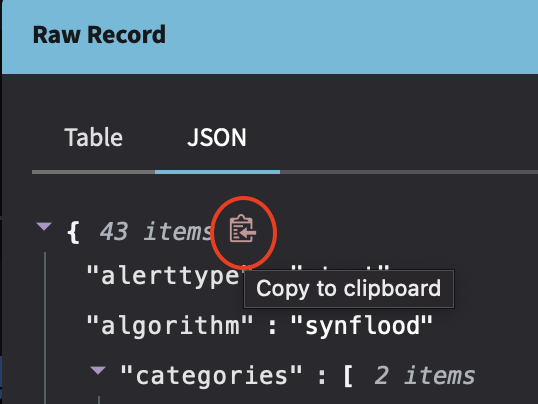
To get logs from the Fusion Portal to use for the Panther custom log types, go to **Search -> Events**, select an event. view the **raw record** from the properties tray, select the **JSON** tab, and click the top level clipboard icon as shown below:
---
# Agent Instructions
This documentation is published with GitBook. GitBook is the documentation platform designed so that both humans and AI agents can read, navigate, and reason over technical content effectively. Learn more at gitbook.com.
## Querying This Documentation
If you need additional information that is not directly available in this page, you can query the documentation dynamically by asking a question.
Perform an HTTP GET request on the current page URL with the `ask` query parameter, and the optional `goal` query parameter:
```
GET https://docs.fusion.vectra.ai/automate-responses/configuring-response-integrations/panther.md?ask=&goal=
```
`ask` is the immediate question: it should be specific, self-contained, and written in natural language.
`goal` is optional and describes the broader end goal you are ultimately trying to accomplish on behalf of the user. GitBook uses it to tailor the answer towards what is most useful for that goal.
The response will contain a direct answer to the question and relevant excerpts and sources from the documentation.
Use this mechanism when the answer is not explicitly present in the current page, you need clarification or additional context, or you want to retrieve related documentation sections.