> For the complete documentation index, see [llms.txt](https://docs.fusion.vectra.ai/llms.txt). Markdown versions of documentation pages are available by appending `.md` to page URLs; this page is available as [Markdown](https://docs.fusion.vectra.ai/enrich-traffic-with-context/configure-context-integrations/oracle-cloud.md).
# Oracle Cloud Infrastructure
This document provides instructions for configuring Oracle Cloud Infrastructure (OCI) in order for the Vectra Context Integration to have the correct access to pull label contexts. Prerequisites B
This document provides instructions for configuring Oracle Cloud Infrastructure (OCI) in order for the Vectra Context Integration to have the correct access to pull label contexts.
## Prerequisites
Before configuring the OCI Context Integration in Vectra, you will need to have a group, policy, user, and tenancy OCID configured in OCI. Refer to the below instructions for more configuration information.
### Create a group
1. In the top left menu click on "Identity & Security" and then click on "Domain" in the next menu to the right
2. If you have more than one domain, select your main domain. If not, skip this step (you'll just see the main domain).
3. On the next screen click "User Management" in the top bar.
4. Scroll down to the Groups section, and click on "Create Group".
4. Name the group `vectra-fusion-context-group` and give it a description of your choice. Then, click "Create" to create the group.
### Create a policy
1. In the top left menu click on "Identity & Security" and then click on "Policies"
2. On the following screen click "Create Policy"
3. Complete the Policy Form as follows:
1. Name: `vectra-fusion-context-policy`
2. Description: `Context Policy for Vectra Fusion`
3. Compartment: Your root compartment (varies)
4. Toggle the manual editor, and then paste the following policy:
```
allow group vectra-fusion-context-group to read virtual-network-family in tenancy
allow group vectra-fusion-context-group to read instance-family in tenancy
```
4. Click "Create" to complete the policy creation.
### Create a User
1. In the top left menu click on "Identity & Security" and then click on "Domain" in the next menu to the right
2. If you have more than one domain, select your main domain. If not, skip this step (you'll just see the main domain).
3. On the next screen click "User Management" in the top bar.
4. Click "Create User".
5. Fill in the User creation form as follows:
1. First Name: `Vectra Fusion`
2. Last Name: `Context User`
3. Username: `vectra-fusion-context-user`
4. Toggle `Use the email address as the username` off.
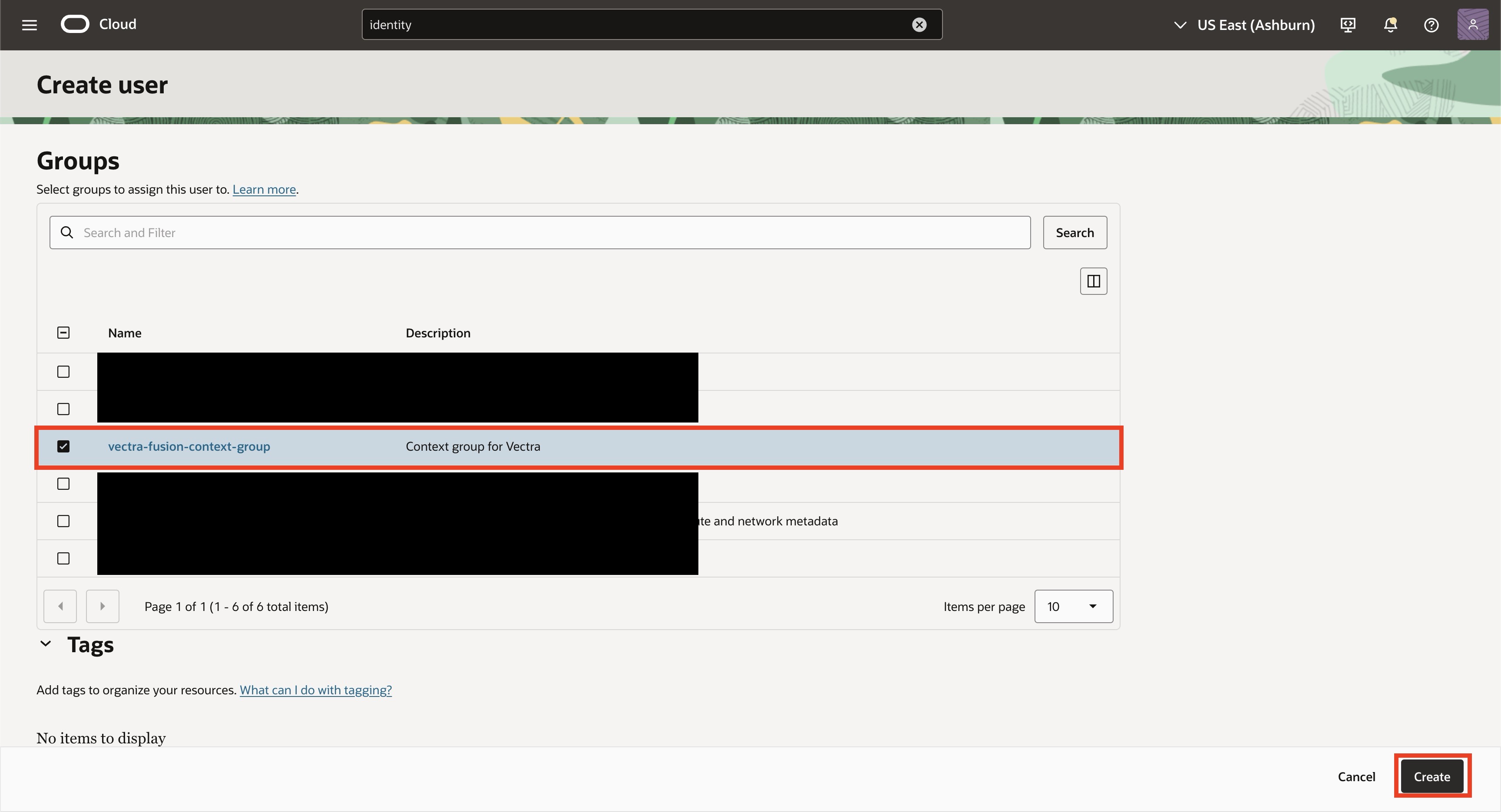
6. Scroll down, and select the group `vectra-fusion-context-group`. Click "Create" to create the user.
### Obtain User and Tenancy OCIDs
1. On the page of the user we just configured click "Copy" under User Information to copy the User OCID as this is needed for the Vectra Fusion portal configuration.
2. Click on the user icon in the top right corner and select Tenancy from the menu
3. On the tenancy page click the copy button to obtain the tenancy OCID. This is also needed for the Vectra Fusion portal.
1. Also note the region as that will also be required in the Vectra Fusion portal.
## Vectra Fusion Portal Steps
Navigate to Integrations (make sure you are on the Context tab) and click "Add Integration", then select `Oracle Cloud Infrastructure`

### Authentication
The following fields are necessary for the integration to authenticate with Oracle Cloud Infrastructure.
| Field | Required | Description |
| -------------- | -------- | --------------------------------------------------- |
| `User OCID` | yes | User OCID to use for authentication to Oracle Cloud |
| `Tenancy OCID` | yes | Tenancy ocid to use for connecting to Oracle Cloud |
### Configuration
The following fields are specific to the Oracle integration.
| Field | Required | Description | Example |
| ------------------- | -------- | ------------------------------------------------------------------------------------------------------------------------------------------------------------------------------------------ | ------- |
| `Tag/Label Matches` | | Tag/Label matches represent the names of tags you use within the cloud provider. IE. A user might choose to tag all of their web servers with a tag "subsystem" that has a value of "web". | |
#### Retrieve the public key information
Once the integration has been created, return to edit the cloud provider you just created.

Make note of the public key and fingerprint. This information will be used in the post configuration step within COS.

### Oracle Steps (Continued)
### Add API Key to Oracle Cloud User
1. Navigate in the Oracle Cloud GUI to the user we just created under "Identity & Security" > "Users"
2. Select the `vectra-fusion-context-user` user you created.
3. On the top menu click "API Keys".
4. Next click "Add API Key".
5. Select "Paste Public Key" in the "Add API Key" modal.
1. Then, paste the public key from the Vectra context integration into the text area.
6. Click the "Add" button to complete the configuration.
7. Click "Close" on the resulting window titled "Configuration File Preview".
The integration should now be functioning.
---
# Agent Instructions
This documentation is published with GitBook. GitBook is the documentation platform designed so that both humans and AI agents can read, navigate, and reason over technical content effectively. Learn more at gitbook.com.
## Querying This Documentation
If you need additional information that is not directly available in this page, you can query the documentation dynamically by asking a question.
Perform an HTTP GET request on the current page URL with the `ask` query parameter, and the optional `goal` query parameter:
```
GET https://docs.fusion.vectra.ai/enrich-traffic-with-context/configure-context-integrations/oracle-cloud.md?ask=&goal=
```
`ask` is the immediate question: it should be specific, self-contained, and written in natural language.
`goal` is optional and describes the broader end goal you are ultimately trying to accomplish on behalf of the user. GitBook uses it to tailor the answer towards what is most useful for that goal.
The response will contain a direct answer to the question and relevant excerpts and sources from the documentation.
Use this mechanism when the answer is not explicitly present in the current page, you need clarification or additional context, or you want to retrieve related documentation sections.