# April 16, 2024
We've added a few exciting features in this release.
## Enhancements
### Dashboards
#### Navigate to Dashboards
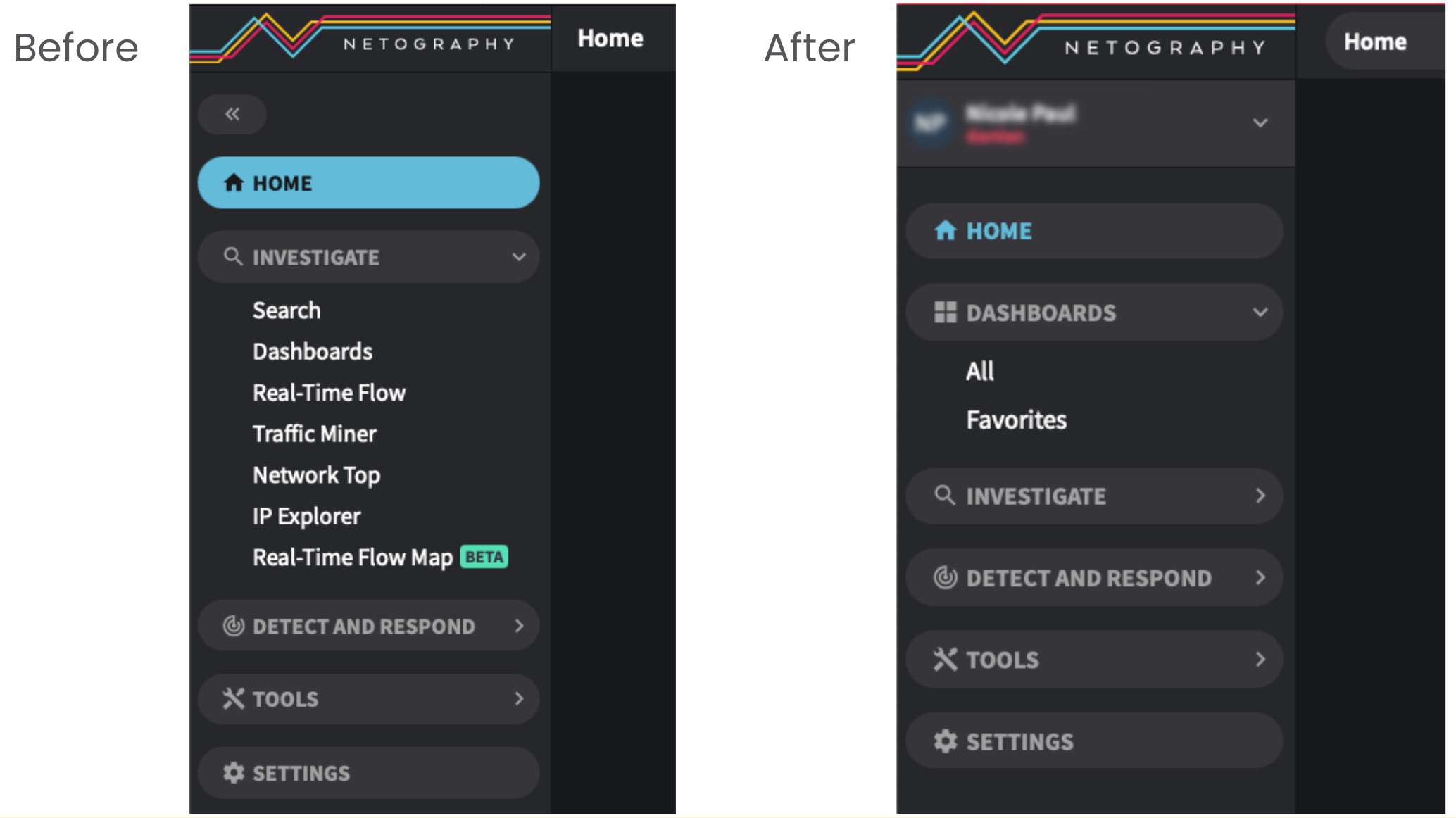
In this version of Fusion, we've promoted the link to Dashboards. Previously, the link was displayed in the Investigate area of the main navigation. Now, DASHBOARDS are promoted to their own category.
#### Dashboard Links: All, Favorites, and Pinned
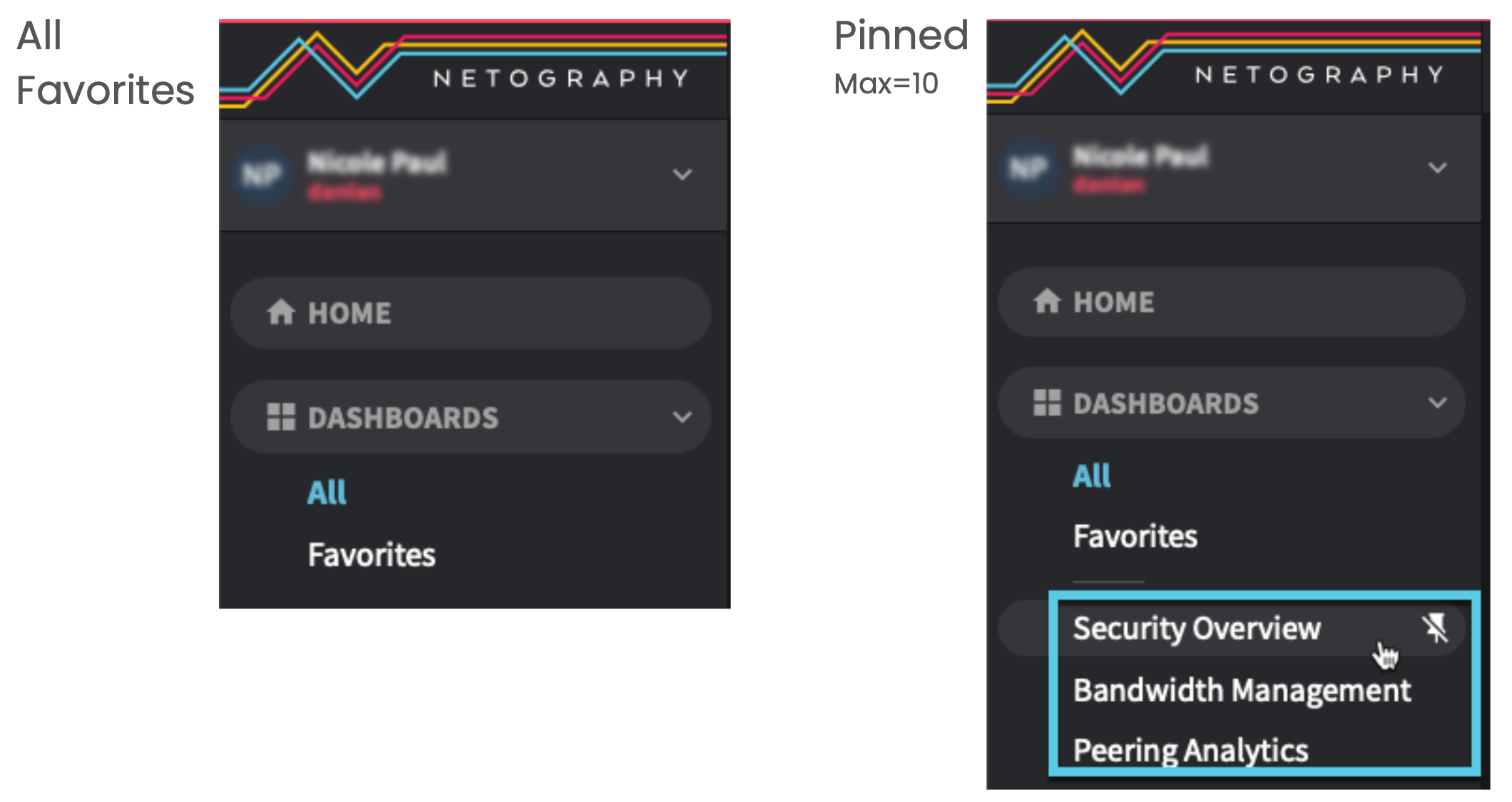
Fusion adds the ability to Pin dashboards to the navigation menu. In addition to All dashboards and Favorite dashboards, you can Pin up-to 10 additional dashboards to the menu.
**Pin dashboard**
1. Click the ellipsis :circle-ellipsis: icon to the left of the dashboard name in the All or Favorites dashboard table list.
2. Click **Pin**.\
Once pinned, the dashboard name and thumbtack :thumbtack: icon displays in the menu.
**Unpin dashboard**
1. From the menu, click the canceled thumbtack :thumbtack-slash: icon to the right of the dashboard name.\
OR
2. Click the ellipsis :circle-ellipsis: icon to the left of the dashboard name in the All or Favorites dashboard table list.
3. Click :thumbtack-slash: "Unpin".
## Fusion tabs
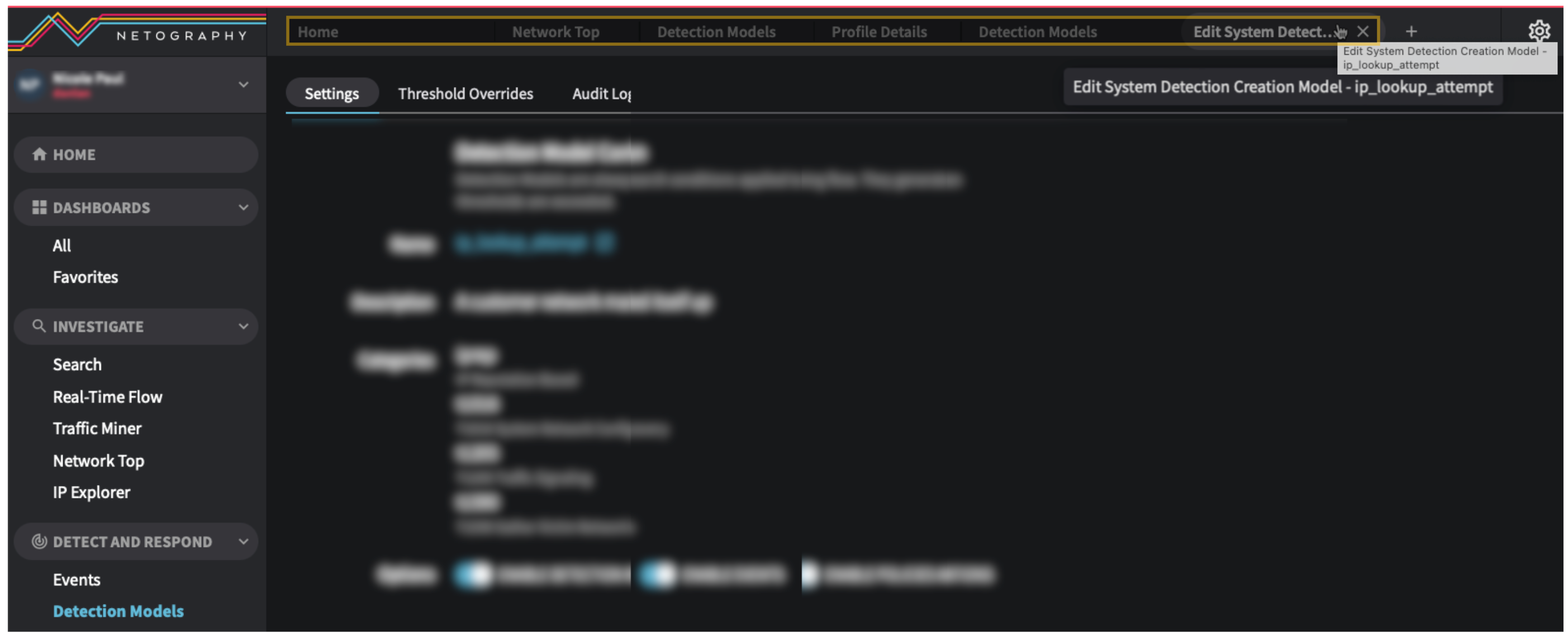
Fusion now displays pages as tabs labeled with the page title on the top of each page.
Tabs allow you to open multiple Fusion pages simultaneously within the same browser window. This helps you multitask more efficiently by switching between different pages without needing to open separate browser windows for each page.
Key features
* Home displays in a new tab
* Ability to drag and drop to reorder tabs
* Tab positions are saved and then are restored upon login
* Hovering over a tab displays its entire page title
* No limitations on the number of open tabs
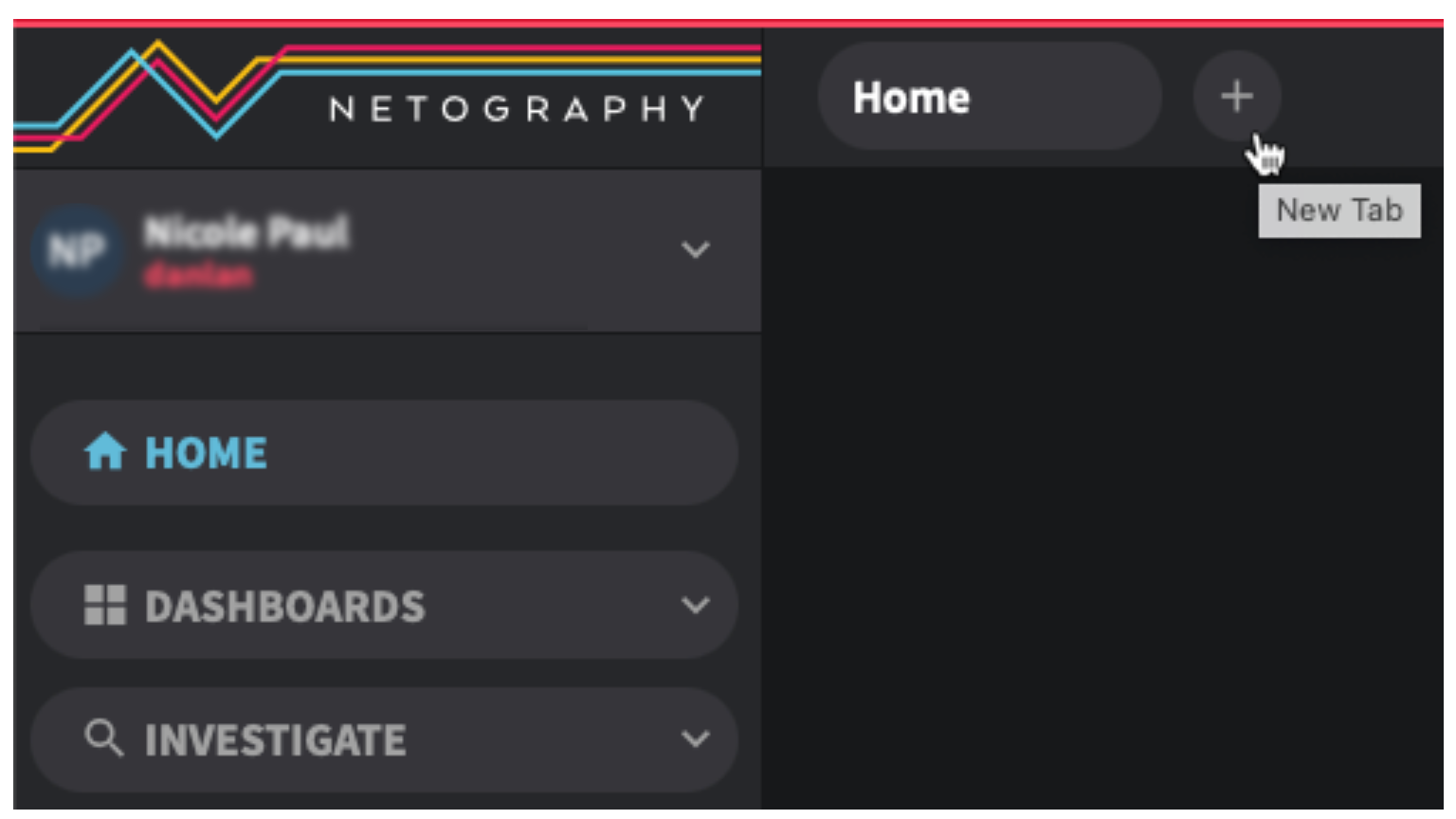
**Create new tabs**
Note: New tabs always open as tabbed Home page.
1. At the top of any page, in the tab area, click the plus :plus: icon to the right of the current tab.
2. Click any new page link, including using the ellipsis :circle-ellipsis: icon to open context pages, like Edit.\
The tabbed page will change (remain focused) until you open a new tab or navigate to another open tab.
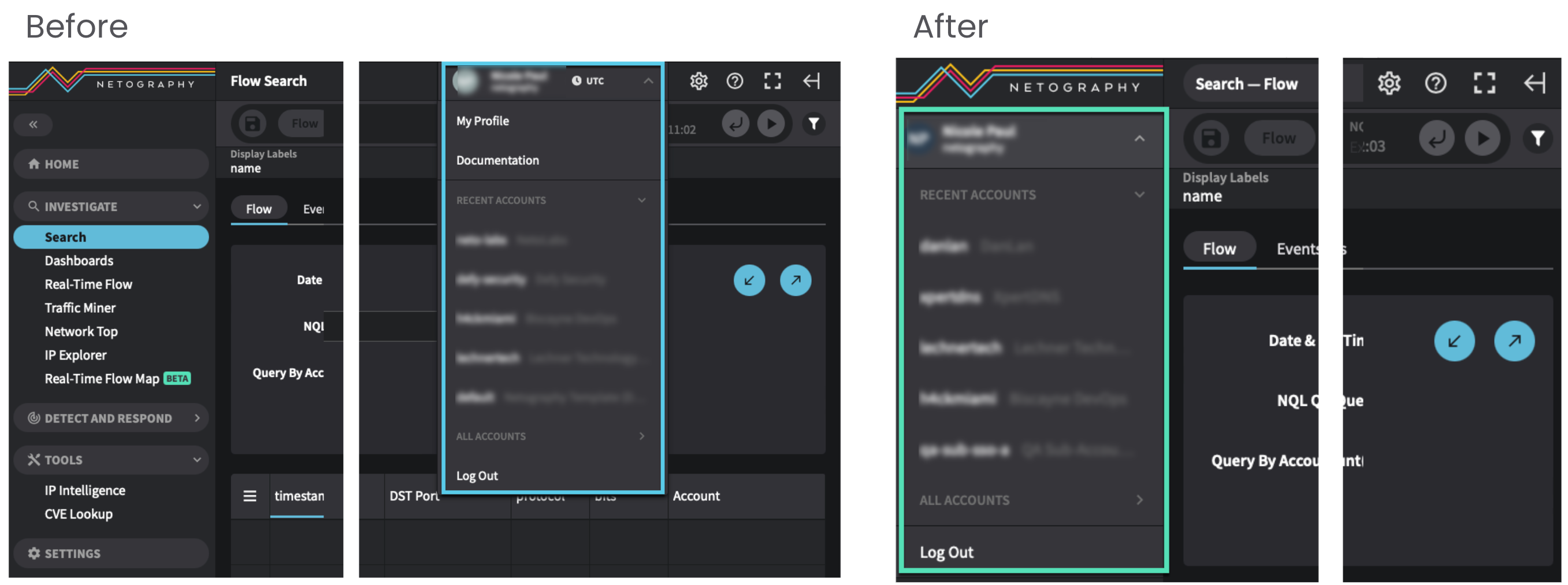
### User element layout changes
We've made 2 changes that impact user interface features:
* User avatar & drop-down menu moved
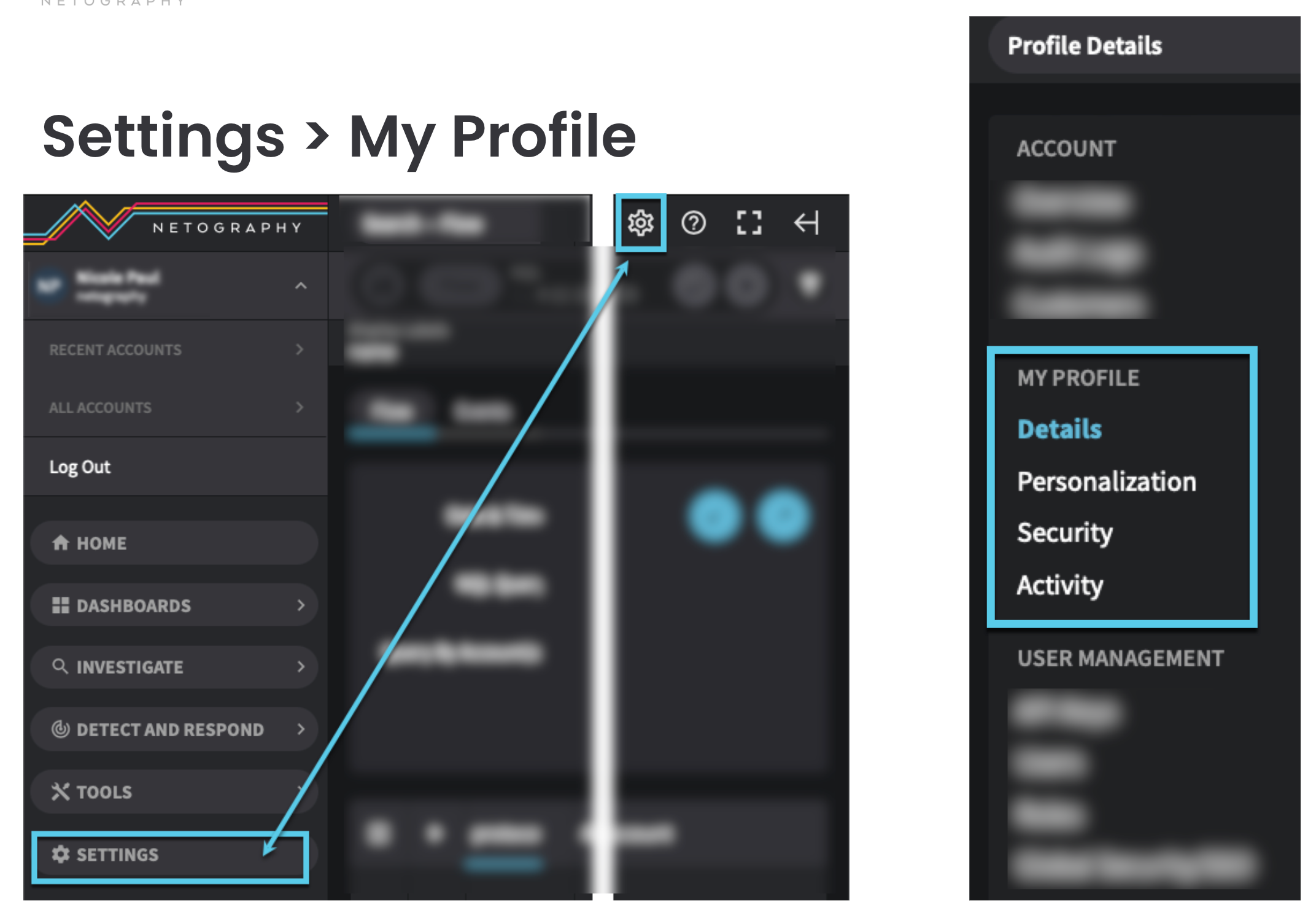
* My profile (Settings)
In previous versions, Fusion displayed the user's full name, photo/avatar, company name, and time zone in the upper right corner of the Fusion interface. The drop-down arrow :solid: icon displayed options associated with the user, including a link to the My Profile page.
Now, in this version, Fusion displays the user's information and feature menu at the top left corner of the interface. Additionally, My Profile is now accessed by 2 methods:
1. Click **Settings** in the left main menu and navigate to the **My Profile** category options.\
OR
2. Click the gear :gear: icon in the upper right corner of the Fusion interface and then navigate to the **My Profile** category options.
---
# Agent Instructions: Querying This Documentation
If you need additional information that is not directly available in this page, you can query the documentation dynamically by asking a question.
Perform an HTTP GET request on the current page URL with the `ask` query parameter:
```
GET https://docs.fusion.vectra.ai/release-notes/2024/april-16-2024.md?ask=
```
The question should be specific, self-contained, and written in natural language.
The response will contain a direct answer to the question and relevant excerpts and sources from the documentation.
Use this mechanism when the answer is not explicitly present in the current page, you need clarification or additional context, or you want to retrieve related documentation sections.