# April 15, 2025

This release introduces new capabilities and usability improvements, including:\
**🛡️ MITRE ATT\&CK tactics and techniques selection in Response Policies**\
**🔍 Pivoting support in Traffic Top for faster forensic investigations**\
**🧪 Infoblox NIOS as a DNS traffic source (*****Early Access*****)**\
**📋 Expand Roles Table to view permissions**\
**🔐 Global Security/SSO settings page split into Password & Security and SSO**

### 🛡️ MITRE ATT\&CK Framework in Response Policies

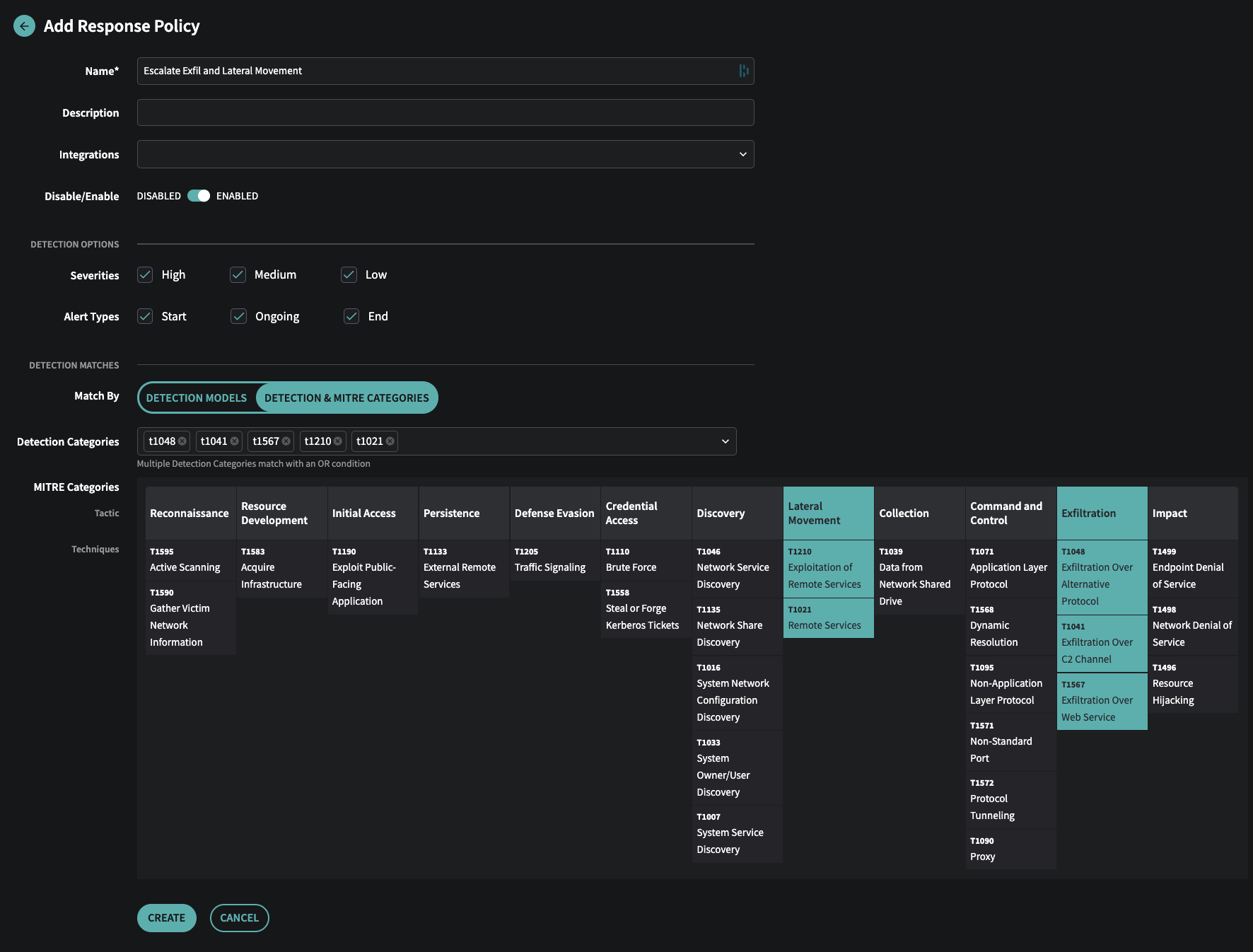
You can now select MITRE ATT\&CK tactics and techniques directly from a visual editor when creating or editing Response Policies. This builds on our [February release](https://docs.netography.com/changelog/release-notes-02182025), where MITRE ATT\&CK Framework classifications were first introduced in the Events view.

**How to Use:**\
1\. Go to **Settings > Response Policies**\
2\. Add or edit a policy\
3\. Under **Match By**, choose **Detection & MITRE Categories**\
4\. Select from the tactics and techniques shown. Selecting a tactic will automatically select all associated techniques.

<figure><img src="https://files.readme.io/94ad3a7cffea614a6c3146402a71ab960e250c612cc0e0bb81a4956a4bb06d65-fusion-response-mitre.png" alt="Response Policy with MITRE ATT&#x26;CK Tactics selected"><figcaption><p>Response Policy with MITRE ATT&#x26;CK Tactics selected</p></figcaption></figure>

### 🔍 Pivoting in Traffic Top

Traffic Top now allows you to **pivot into detailed views** of aggregated data, accelerating investigations.

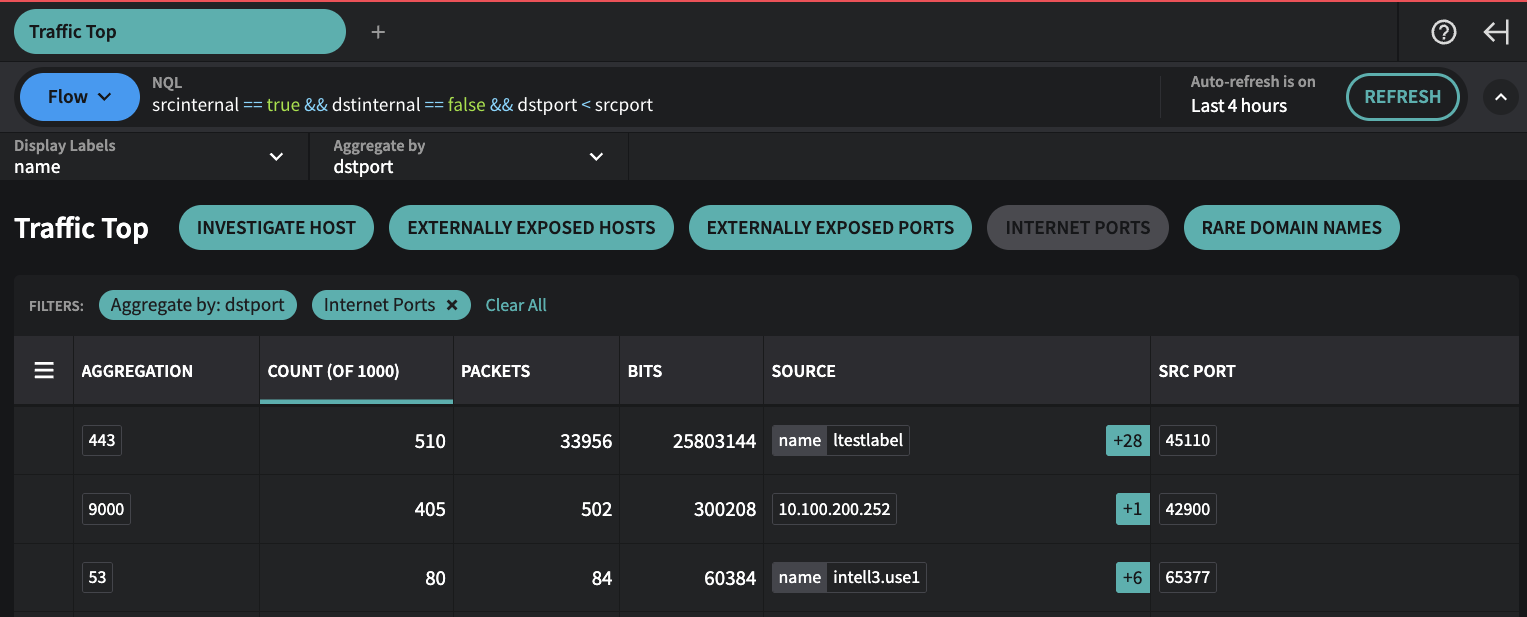
If a column displays an entry like **+6** next to the item, it means there are **at least** six additional items not shown. Click it to pivot into a filtered view showing **additional items** for that row.

**Example: Investigating Unusual Traffic to an Internet (external) Port**\
1\. Open **Traffic Top** from the **Investigate** menu\
2\. Select the **Internet Ports** preset\
3\. Note the aggregation by `dstport`. You see `53` with a **+6** in the Source column\
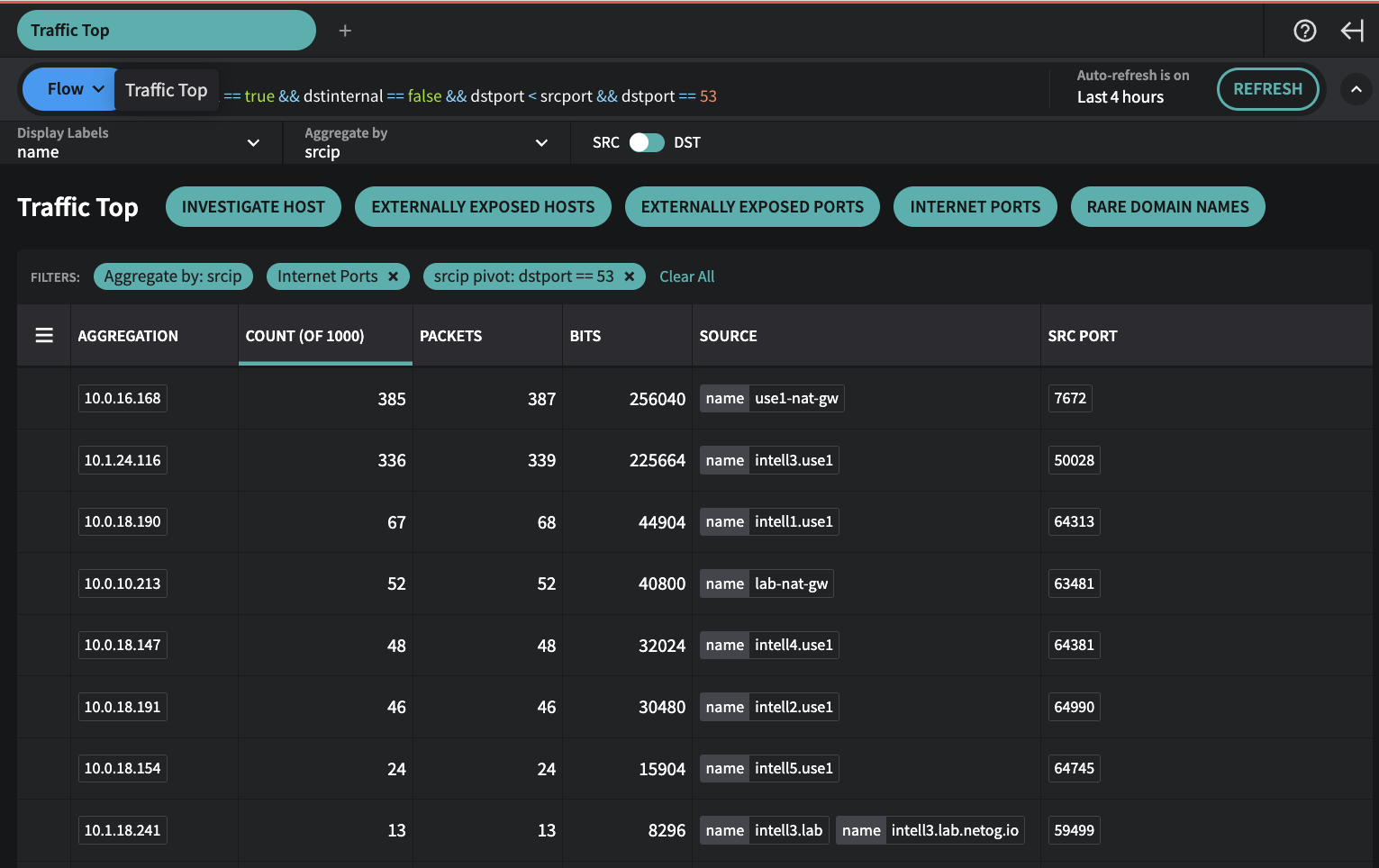
4\. Click **+6** to pivot—your filter now scopes to `dstport == 53` and aggregates by `srcip`, providing a table of source IPs.

When you pivot, the Aggregate By field (`dstport` in this case), is added to the global filter, and Traffic Top is now set to Aggregate by the field you selected to pivot (`srcip` in this case). This now changes your view from looking at all source IPs aggregating data by the source IPs that are communicating to port 53.

<figure><img src="https://files.readme.io/d4981b776772009f4cd46bc18a2a3684f6125cc05e8ba6a7c06786d9f92c8317-fusion-traffictop-pivot.png" alt="Traffic Top - Internet Ports Preset"><figcaption><p>Traffic Top - Internet Ports Preset</p></figcaption></figure>

<figure><img src="https://files.readme.io/68ca18b66af1d73be771c69b97059b50113054c58c13fbf589ca0e4aa9c48a0c-fusion-traffictop-pivot53.png" alt="Traffic Top - Clicked **+6** box in Source column for **Aggregation 53** to do a srcip Pivot"><figcaption><p>Traffic Top - Clicked <strong>+6</strong> box in Source column for <strong>Aggregation 53</strong> to do a srcip Pivot</p></figcaption></figure>

> ### ℹ️Why do I see more entries when I pivot than the number originally shown?
>
> The Traffic Top view only looks at the first 1,000 traffic records that match your current filters. If you’re starting with a larger dataset (like traffic for an entire network or a long time window), you’re only seeing aggregations of those first 1,000 records—not everything.
>
> When you click on a number in the table to pivot (like clicking on port 53), the filters automatically narrow to just show traffic that matches that row. This pulls a fresh set of up to 1,000 records that all relate to that specific item, which is why you might see more detail than before.
>
> Want to dig deeper? You can exclude some of the top items from the current results. For example, if you add to the global filter:`&& srcip != 10.0.16.168 && srcip !=10.1.24.116`and click *Refresh*. This will filter out the most common entries and let you see more of what’s underneath.

<br>

### 🧪 Early Access: Infoblox NIOS as a DNS Traffic Source

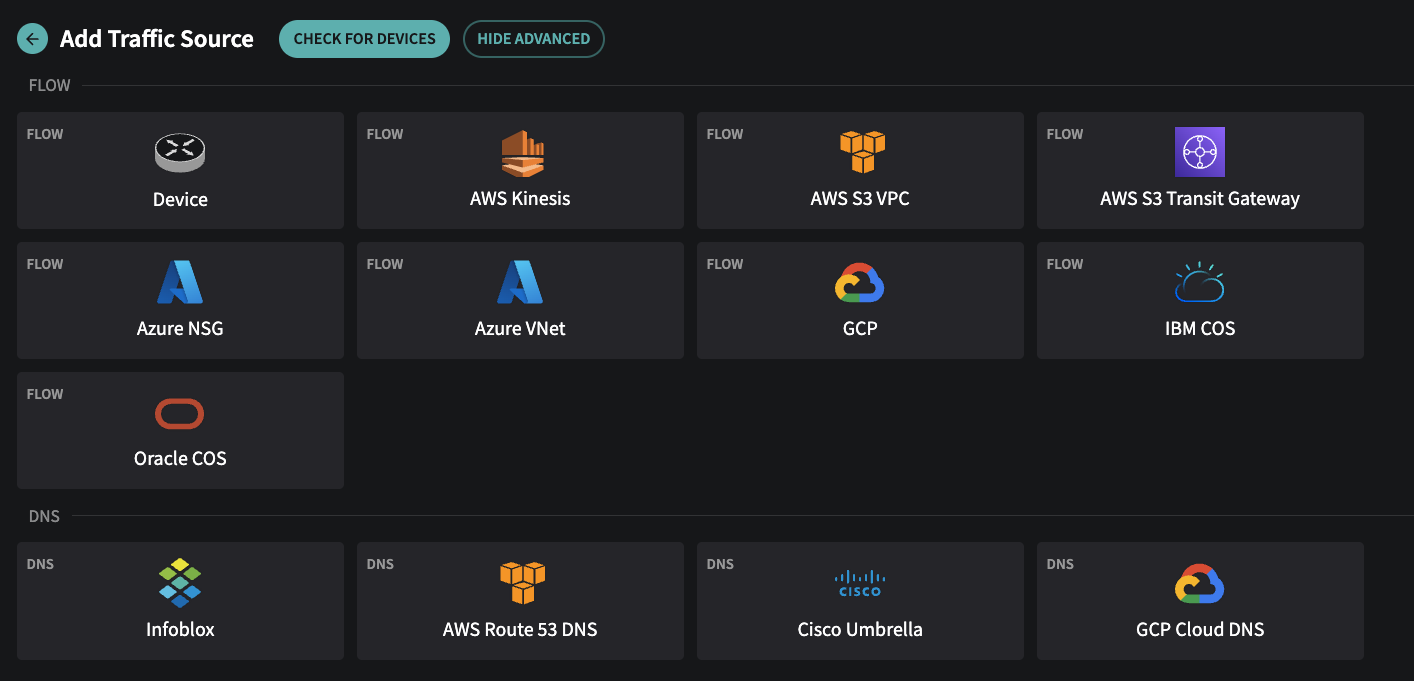
Fusion now supports DNS log ingestion from **Infoblox NIOS** via the new **netodns collector** (Early Access). It operates similarly to `netoflow` and runs as a syslog listener on a Linux host or container. This utilizes the Infoblox NIOS syslog output method to send query logs.

To participate in the Early Access program:\
• Contact **Netography Support** to receive access to the netodns collector and deployment guidance.

If you’re an Infoblox NIOS user and want to understand details of this integration or discuss alternative methods to ingest Infoblox NIOS resolver logs, reach out to discuss.

<figure><img src="https://files.readme.io/b2da3cfffef71fe5dcc1c7f2d2f0b29642891f375a19d5d05acc2b4305c291ad-fusion-traffic-infoblox.png" alt="Infoblox NIOS is now supported as a DNS traffic source"><figcaption><p>Infoblox NIOS is now supported as a DNS traffic source</p></figcaption></figure>

### 👥 Roles/Permissions Updates

**▶ Expand Roles Table to View Permissions**

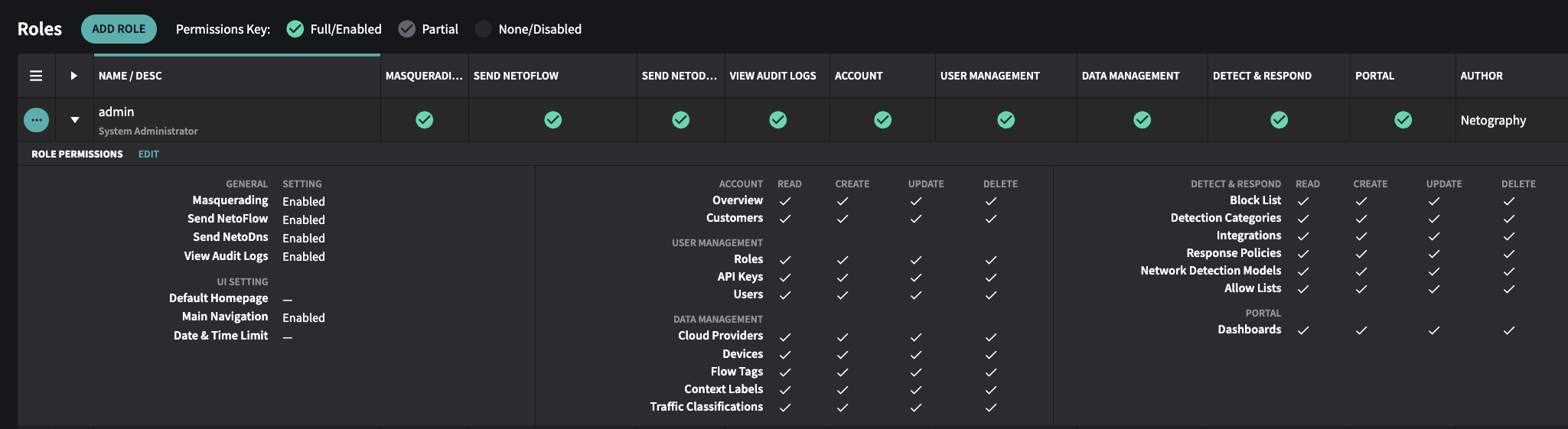
You can now expand roles inline (click the ▶) to quickly see associated permissions—no need to navigate into edit mode..

<figure><img src="https://files.readme.io/e20272733559ebb15ec57f2d9edcf1fa30cdbe749aebc3e4cb2199874458417f-fusion-role-page.png" alt="Expanded view of &#x60;admin&#x60; permissions in Role Page"><figcaption><p>Expanded view of <code>admin</code> permissions in Role Page</p></figcaption></figure>

✅ **New Permission: Send NetoDNS**

A new permission has been added to correspond to the new Infoblox NIOS support and `netodns` collector. **Send NetoDNS** permission controls the ability to ingest DNS logs from a `netodns` collector.

<br>

### 🔐 Security Settings Update

To streamline configuration, the **Global Security/SSO** page has been split into two pages:\
• **Password & Security**\
• **SSO**


---

# Agent Instructions: Querying This Documentation

If you need additional information that is not directly available in this page, you can query the documentation dynamically by asking a question.

Perform an HTTP GET request on the current page URL with the `ask` query parameter:

```
GET https://docs.fusion.vectra.ai/release-notes/2025/april-15-2025.md?ask=<question>
```

The question should be specific, self-contained, and written in natural language.
The response will contain a direct answer to the question and relevant excerpts and sources from the documentation.

Use this mechanism when the answer is not explicitly present in the current page, you need clarification or additional context, or you want to retrieve related documentation sections.